To avoid repetition the following actions will be needed for every example. The provided prompts were tested using Zuora's MCP Server running with Claude Code and Opus 4.6, adjustments may be needed for your set up.
First verify there isn't an existing unit of measure, feed this prompt to our Zuora MCP Server using your preferred AI client tool:
Please show me all the uoms In our example we will use tokens as our new UOM, here's a prompt to create this UOM:
Create a new active unit of measure so I can bill for tokens, the quantities will be integers with no rounding |Review and confirm the new UOM. Any issues with the prompts or you don't have access to Zuora AI, you can always do this manually.
Let's assume you have a product, called 'Gold', that customers pay $100/month per seat using a product rate plan called 'Gold Monthly Plan' and that you now want to sell an 'AI enabled' version of Gold.
This prompt will create a new product rate plan, 'Gold Monthly AI Plan' that copies the Gold Monthly Plan's $100/month charge and adds a tiered usage charge to capture and bill for overage. The first tier, from 1 to 1000 tokens is billed at $0, so 'included', but every token after that is billed at $0.10/token:
Please add a new 'Gold Monthly AI Plan' product rate plan to the 'Gold' product, this new rate plan should have a recurring charge of $100 per month flat rate as well as have a monthly usage charge that has an initial tier of 1000 tokens for $0 and a second tier that charges $0.10 per token over the initial amount of 1000. Use 'Gold Monthly Plan' for any other charge settings you need. Customize the prompt for your needs and for the products in your tenant. If you don't have a suitable rate plan to copy from, just leave the last sentence out and Zuora MCP will ask you for what it needs, but review the results carefully to ensure the settings are what you, and your Finance team, expect. It's easy to edit charges and rate plans if they haven't been added to a subscription or billed. Hopefully you'll see something like this:
Summary

Added Gold Monthly AI Plan to the Gold product (PRP-00000326, id
bd9f48b0d1774fa58cd00b4a6a6b464c, active, USD, effective 2020-01-01 → 2100-12-31).
Charge 1 — Gold Monthly Recurring Fee (PRPC-00000452)
  - Recurring, Flat Fee, $100.00 / month
  - Billed monthly in advance, aligned to charge, trigger on contract effective — mirrors the Gold Monthly Plan settings
  - Accounting: Earned SaaS Revenue / Recognize upon invoicing

Charge 2 — Gold Monthly AI Usage (PRPC-00000453)
  - Usage, Tiered model, UOM = Token
  - Tier 1: 0–1,000 units @ $0.00
  - Tier 2: 1,001+ units @ $0.10/unit
  - Monthly billing period, rated end of billing period
  - Accounting: Earned SaaS Revenue / Recognize upon invoicing
If you're not permitted to make changes to your tenant using MCP, create the rate plan and charges in your tenant's UI. If you pull up your equivalent of your 'Gold' product, each of the listed Rate Plans has a 'clone' button, use this to make a copy of the rate plan and recurring charge. Update the rate plan name to say 'Gold AI Monthly Plan', similarly update the recurring charge name. Then use the '+add new' link in the third column to create a usage charge, which should be called something like 'Gold AI Monthly Token Overage. Remember these fields will appear on the invoice, so they need to make sense to your customers else they'll refuse to pay their invoice.
In the usage charge definition use 'Per Unit Pricing', list price of 0.10 or something suitable for your currency, and pick 'Token' as the UOM. Leave everything else to defaults expect make 'Trigger Condition' 'Upon Contract Effective', 'End Date', 'Align to Subscription End Date', 'Billing Period', 'Month', 'Billing Day', 'Default from Customer Account', 'Billing Period Alignment', 'Align to Charge', 'Usage Record Rating Option', 'End of Billing Period' and 'Proration', 'No Proration'. We discussed earlier how the Finance settings are both unique to your business and you need to pick the ones Finance wants.
With the Gold Monthly AI Plan, create a new subscription for that plan with a contract effective date of July 1st 2026. You can use any date but if you use a date after July 1st and don't edit the llm_usage.csv's event_time to match the month you choose, you won't generate an invoice at the end as the loaded usage records will predate your subscription start. Prompt Zuora MCP to do this or use the UI. For our initial test ensure the billing account has only one subscription with our new 'Gold Monthly AI Plan' and that the usage charge is the only charge that has 'Token' as the UOM. These aren't Zuora limitations, this configuration makes for a simpler first example.
Make a note of the Account Number that owns the subscription for Gold AI Plan. You need to edit the provided csv file (next section) using a text editor and find/replace the current value in the file, 'A00025254' with the actual account number.
For the examples in this tutorial we will use a prepared event file in csv format called llm_usage.csv. The file has just over 1000 events/records and the columns are detailed below this screenshot.
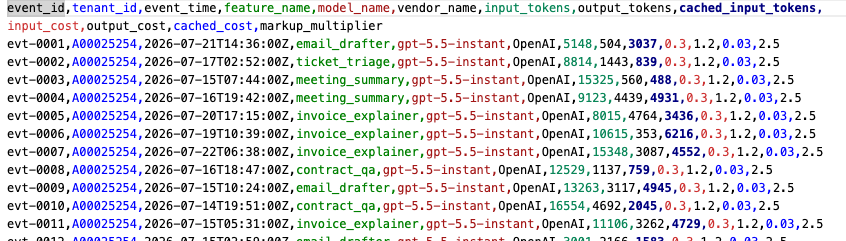
This demonstration file allows us to show:
- Use of deduplications in meters (the last two rows are duplicates of earlier rows)
- Filtering of incomplete records that shouldn't be billed (rows 901, 902)
- Transformations that include adding new columns to the output of the meter that are not in the input
- Record splitting, one input record has multiple quantities and we need to split them out as each quantity is billed at a different rate
- Prerated usage, while usually pricing is maintained in Zuora, it doesn't have to be. With 'prerated' you tell Zuora Billing the quantity, the UOM and the price per unit or the total amount, and the Zuora Billing Engine will bill that amount.
The original 1002 input records will be reduced to 998 usage records by the meter.
Our sample source file assumes that there are no required custom fields defined on the usage object in your tenant. You'll get an error message stating the field is missing if that is the case but you'll need to add that field and a value to the meter target for the final Zuora Usage Record to load without error.
llm_usage.csv fields:
| Column | Purpose |
|---|---|
| event_id | Unique event identifier, will be used as the dedupe key |
| tenant_id | Will be mapped to the billing account number in the resulting usage record - update with the valid account number in your tenant when working with these examples. |
| event_time | Event timestamp, when did this consumption event occur? Becomes the StartDate in the resulting usage record. |
| feature_name | AI feature used |
| model_name | LLM model |
| vendor_name | Upstream model vendor |
| input_tokens | Prompt tokens |
| output_tokens | Response tokens |
| cached_input_tokens | Cached input tokens |
| input_cost | Cost per token |
| output_cost | Cost per token |
| cached_cost | Cost per token |
| markup_multiplier | Cost-plus multiplier |
The lack of a quantity field or UOM field in this input file is intentional, our meters will create these fields.
Previous: AI monetization pre-launch checklist
Next: Measured add-on use case